

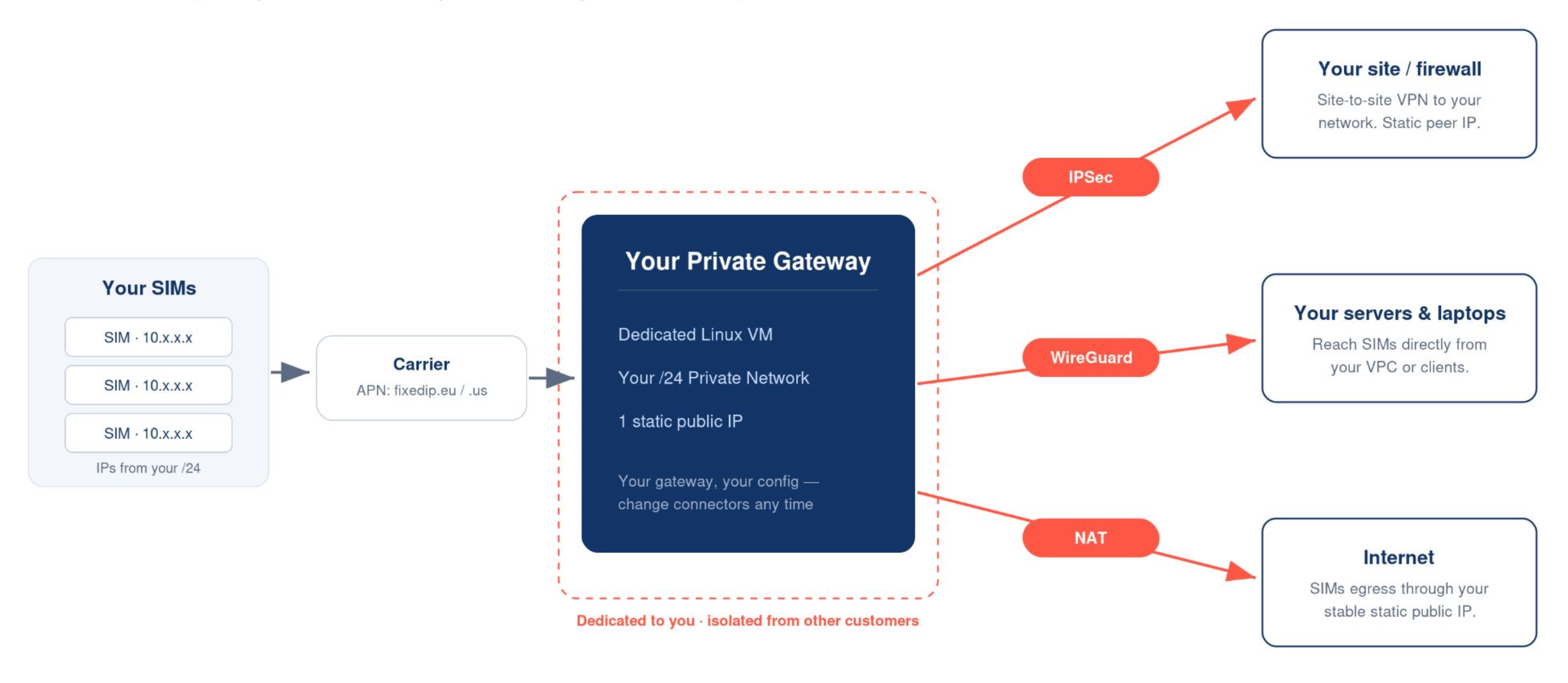
A privé-netwerk wijst een groep simkaarten statische IP-adressen toe via een gateway die exclusief voor uw account is gereserveerd. Elk Simbase-privénetwerk draait op een eigen privé-gateway, in een POP naar keuze, met een connector naar keuze. In dit artikel wordt de nieuwe architectuur van de Simbase-privénetwerken besproken en wordt uitgelegd hoe u verbinding kunt maken met WireGuard.
Wat levert een privénetwerk je op?
Een speciale gateway, speciaal voor jou. Uw privénetwerk draait op een eigen, geïsoleerde gateway, niet op een server die met andere klanten wordt gedeeld. Geen luidruchtige buren, geen storingen die andere klanten treffen.
Statische IP-adressen die door de provider worden toegewezen. Elke simkaart krijgt rechtstreeks van de provider een IP-adres uit uw eigen bereik. Er is geen tussenstap van dynamische naar statische NAT.
Uw keuze van connector, per netwerk instelbaar:
WireGuard, aanbevolen voor de meeste opstellingen, zie hieronder.
IPsec, een bidirectionele site-to-site-tunnel naar uw eigen netwerk, zie IPsec.
NAT, de gateway wijst simkaarten een openbaar IP-adres toe zonder dat er een VPN-tunnel wordt gebruikt.
Uw keuze uit POP. Frankfurt (EU) of Virginia (VS).
Voor meer informatie over wat een VPN doet en wanneer het de moeite waard is om er een in te stellen, zie VPN voor het IoT.
Een privénetwerk opzetten
Het implementeren en toewijzen van simkaarten aan een privénetwerk is eenvoudig:
Ga naar Privé-netwerken in je Simbase-dashboard.
Klik Netwerk aanmaken.
Geef je netwerk een naam en selecteer de Locatie van de uitbraak en SIM-profiel.
Implementeer het netwerk.
Om simkaarten aan uw netwerk toe te wijzen:
Open het zojuist aangemaakte pprivé-netwerk.
Ga naar SIM-kaarten.
Klik op SIM-kaarten toewijzen.
Zoek de simkaarten op die je wilt toevoegen aan de privé-netwerk en klik op "Assign Selected".
Maak verbinding via WireGuard
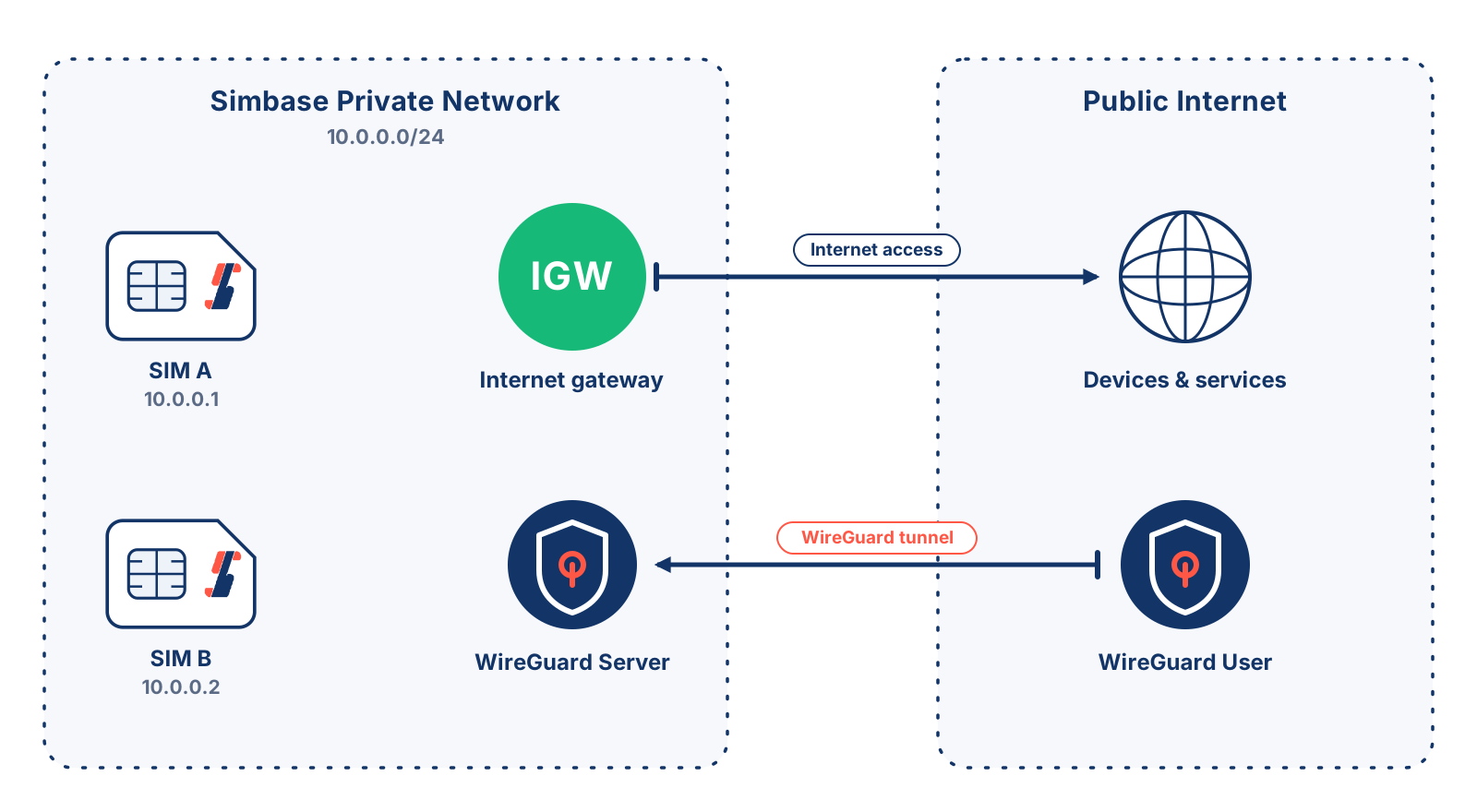
Verbinding maken is een kwestie van kopiëren en plakken: Simbase genereert een kant-en-klare configuratie voor je privénetwerk. Installeer de client, maak een lege tunnel aan, plak de configuratie en activeer deze.
Een configuratie ziet er ongeveer zo uit:
1. Download je configuratiebestanden
De e-mail van uw netwerk bevat vijf Bitwarden-verzendlinks en één wachtwoord. Elke link biedt je één kant-en-klare WireGuard-configuratie als een .txt bestand, één per apparaat of client waarmee je verbinding wilt maken.
Voor elke link:
Open de e-mail en kopieer het wachtwoord dat daarin staat.
Klik op de Bitwarden-link ‘Verzenden’. Er wordt dan een Bitwarden-pagina in je browser geopend.
Plak het wachtwoord in het wachtwoordveld en klik op Doorgaan.
Klik Downloaden. A
.txthet bestand wordt opgeslagen op je computer, bijvoorbeeldwireguard_profile_1.txt.Herhaal dit voor de overige schakels.
Open een van de gedownloade bestanden in een teksteditor om te controleren of het eruitziet als een configuratiebestand, met een [Interface] paragraaf en een [Collega] paragraaf.
2. Installeer de WireGuard-app
Windows, macOS of Linux: wireguard.com/install.
iPhone of iPad: de App Store.
Android: Google Play.
Open de app zodra deze is geïnstalleerd.
3. Een tunnel toevoegen (desktop)
Open een van de bestanden die je hebt gedownload
.txtbestanden in een teksteditor (Kladblok op Windows, TextEdit op macOS).Selecteer alles en kopieer het.
Klik in de WireGuard-app op Tunnel toevoegen en kies Lege tunnel toevoegen.
Verwijder alles in de nieuwe editor die wordt geopend.
Plak je configuratie.
Geef het een herkenbare naam, bijvoorbeeld
Simbase private network 1.Klik Opslaan.
Selecteer de tunnel in de lijst en klik op Activeren.
Binnen enkele seconden verandert de status Actief, en je ziet dan de tijd van de „Laatste handshake” en het aantal verzonden en ontvangen bytes. Dat betekent dat je verbonden bent.
4. Een tunnel toevoegen (mobiel)
Sla de .txt bestand naar je telefoon, open de WireGuard-app, tik op +, kies Aanmaken vanuit een bestand of archief, en selecteer het bestand. Tik vervolgens op de tunnel om deze in te schakelen.
Als je op je telefoon geen .txt bestand, hernoem het zodat de naam eindigt op .conf ten eerste.
5. Controleer of het werkt
Controleer in de WireGuard-app of de tunnel wordt weergegeven Actief, met een recente Nieuwste handdruk en het aantal verzonden en ontvangen bytes neemt beide toe.
Zodra de tunnel is opgezet, ping je een van je simkaarten op het statische IP-adres dat je kunt vinden in de lijst per simkaart die Simbase je heeft gestuurd.
Probeer dan de dienst die je daadwerkelijk nodig hebt, zoals SSH of de webinterface van het apparaat. Sommige apparaten reageren niet op een ping, zelfs als ze bereikbaar zijn.
Als een simkaart niet reageert:
Controleer of de simkaart Ingeschakeld en is verbroken met het netwerk sinds je de APN hebt gewijzigd. Een apparaat dat nog geen nieuwe verbinding heeft gemaakt, gebruikt nog steeds de oude APN. Zie SIM-status.
Controleer of het apparaat is ingesteld op fixedip.eu of fixedip.us, afgestemd op de POP waarin je gateway draait.
Controleer de eigen firewall van het apparaat. Het is mogelijk dat de tunnel actief en in orde is, terwijl het apparaat zelf het verkeer blokkeert.
Teltonika-routers, via sms
Teltonika-routers ondersteunen het op afstand wijzigen van APN-instellingen via sms, zodat je geen fysieke toegang of een VPN-verbinding nodig hebt:
Vervangen
<router_password>met het SMS-wachtwoord van de router.Gesitueerd in Diensten → Mobiele hulpprogramma’s → SMS-hulpprogramma’s.
Gebruik
fixedip.usin plaats vanfixedip.euals uw netwerk zich in de Amerikaanse POP bevindt.Stuur het sms-bericht via het dashboard naar de simkaart. De router past de wijziging toe en maakt automatisch opnieuw verbinding.
Andere leveranciers
De meeste mobiele routers en modules ondersteunen APN-updates op afstand via hun beheerplatform, zoals bijvoorbeeld Cradlepoint NetCloud, Sierra Wireless AirLink, Robustel RCMS of InHand iManager. Als u een tool voor vlootbeheer gebruikt, voer de APN-wijziging dan eerst daar door en test deze op een kleine groep voordat u deze naar de volledige vloot uitrolt.
Gebruik voor ingebouwde modules (Quectel, Telit, Sierra, u-blox) een AT-commando via uw bestaande seriële of MQTT-besturingskanaal:
Veelgestelde vragen
Ja, elk privénetwerk kost $/€/£ 3 per dag en omvat een /24-subnet.
Ja. NAT is een van de drie beschikbare verbindingsopties, naast WireGuard en IPsec. Bij NAT wijst de gateway je simkaarten een openbaar IP-adres toe zonder dat er een tunnel wordt gebruikt.
Geen limiet. In je installatie-e-mail vind je vijf kant-en-klare configuraties; neem dus contact op met de helpdesk als je er meer nodig hebt.
Nee, OpenVPN kan niet langer worden gebruikt. We zijn overgestapt van OpenVPN naar WireGuard, omdat dit betere prestaties en stabiliteit biedt.
Gerelateerd
IPsec — een bidirectionele IPsec-tunnel instellen of migreren
VPN voor het IoT — wanneer een VPN de extra complexiteit waard is
Openbare IP-adressen — voor inkomende bereikbaarheid op één simkaart zonder eigen netwerk
Network Address Translation (NAT) — wat dit betekent voor het IoT
Compatibiliteitscontrole — controleer of je apparaat compatibel is voordat je het in gebruik neemt


© 2026 Simbase. Alle rechten voorbehouden.