

Every timestamp in your Simbase dashboard is shown in your account's timezone: data sessions, SIM events, SMS logs, and usage history. By default this is set automatically when you sign up, based on the IP address you signed up from. This article covers how to change it and what it affects.
Set a new timezone
Open the dashboard.
Go to Settings → Personal details.
Select the timezone you want from the list.
Save.
The new timezone applies immediately. No waiting period and no need to sign out and back in.
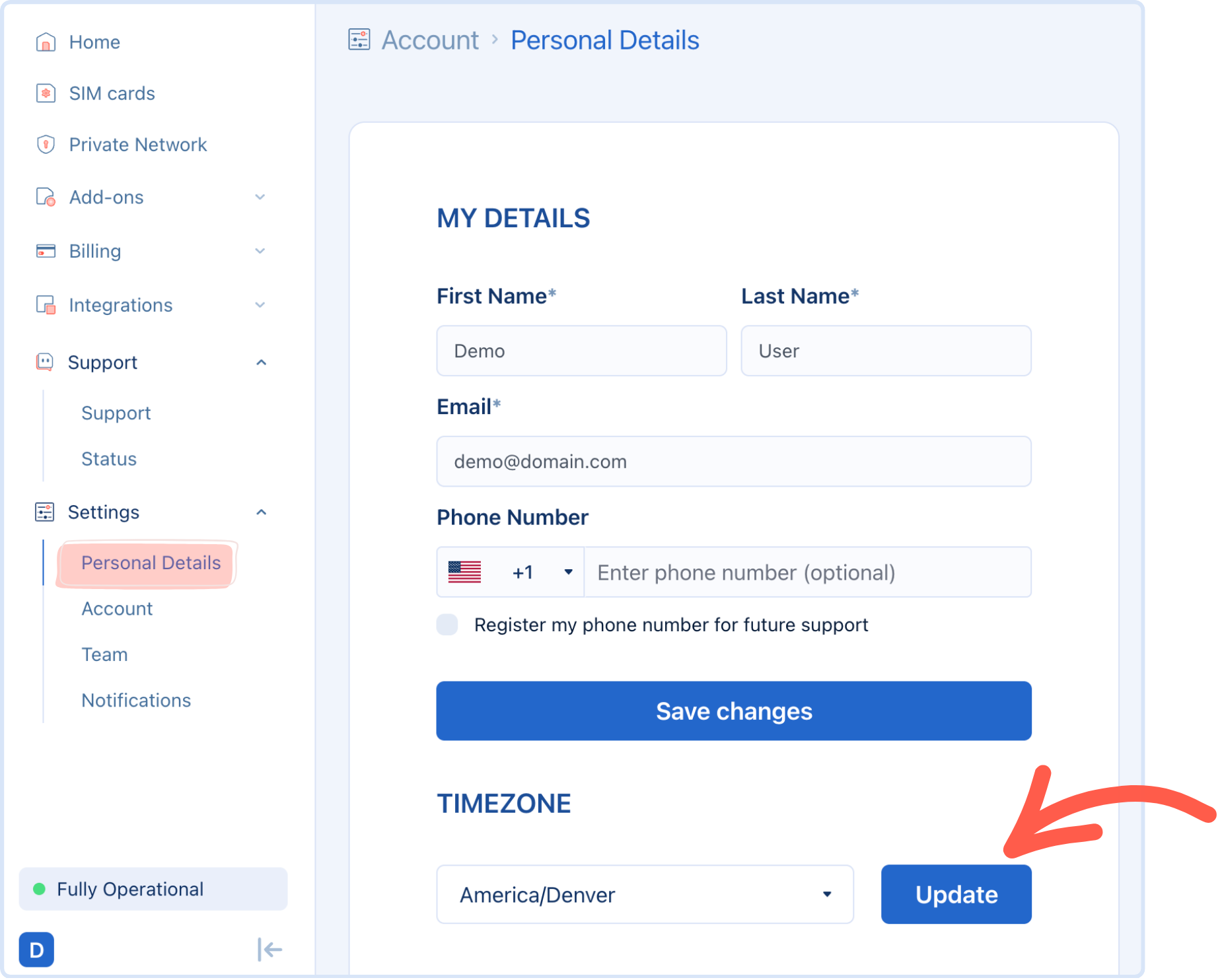
What it affects
Changing your account timezone updates how timestamps are displayed across the dashboard, including:
Data session start and end times
SIM registration and status-change events
SMS send/receive logs
Usage history shown in Data usage and overages
Changing the timezone doesn't change when anything actually happened. It changes how those times are displayed to you. Underlying records and billing periods aren't affected.
Why you might want to change it
Your account was created from an office, but your team or fleet operates in a different timezone, and you'd rather read dashboard timestamps in local time.
You're troubleshooting an issue with a partner or operator who reports times in a specific timezone, and want to match it temporarily.
Common questions
No, billing currency is separate and permanent (see Create an account). Timezone only affects how timestamps are displayed.
Yes. Unlike billing currency, the timezone setting can be changed as often as you like.
Displayed timestamps for historical events update to the new timezone immediately. The underlying event times themselves haven't changed, only the timezone used to display them.
Related
Create an account — how the default timezone is set at sign-up
Data usage and overages — how usage timestamps relate to CDR arrival
Auto-disable — scheduled behavior that runs on UTC


© 2026 Simbase. All rights reserved.